

Customers
Booking & Scheduling
Calendars customers can use to book meetings, with two-way Google/Outlook sync. Let customers book time with you. Install it in one click and it appears across your workspace instantly.
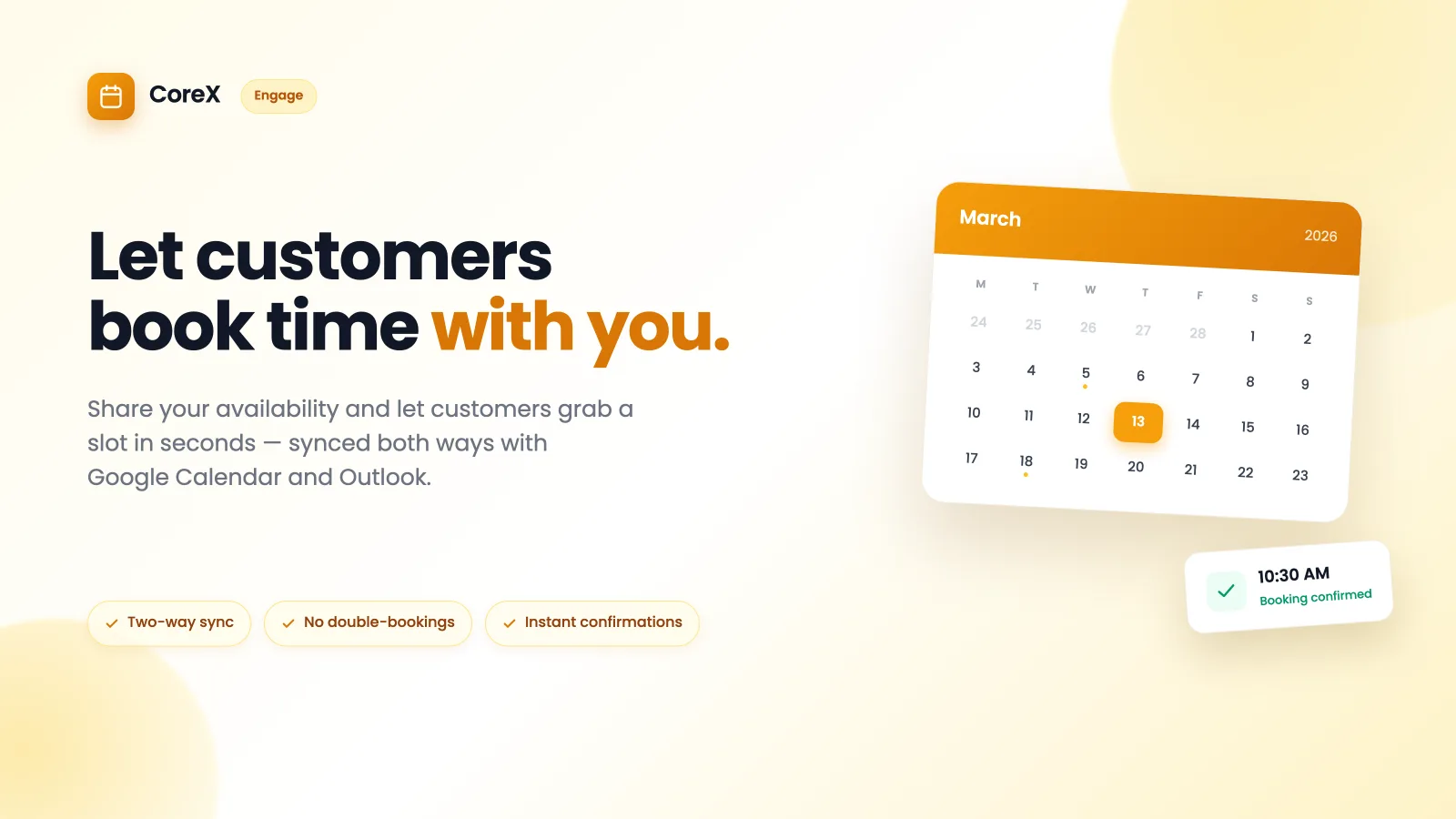
Let customers book time with you.
Calendars customers can use to book meetings, with two-way Google/Outlook sync.
Turn it on or off anytime, no setup lock-in.
what it does
Inside Booking & Scheduling
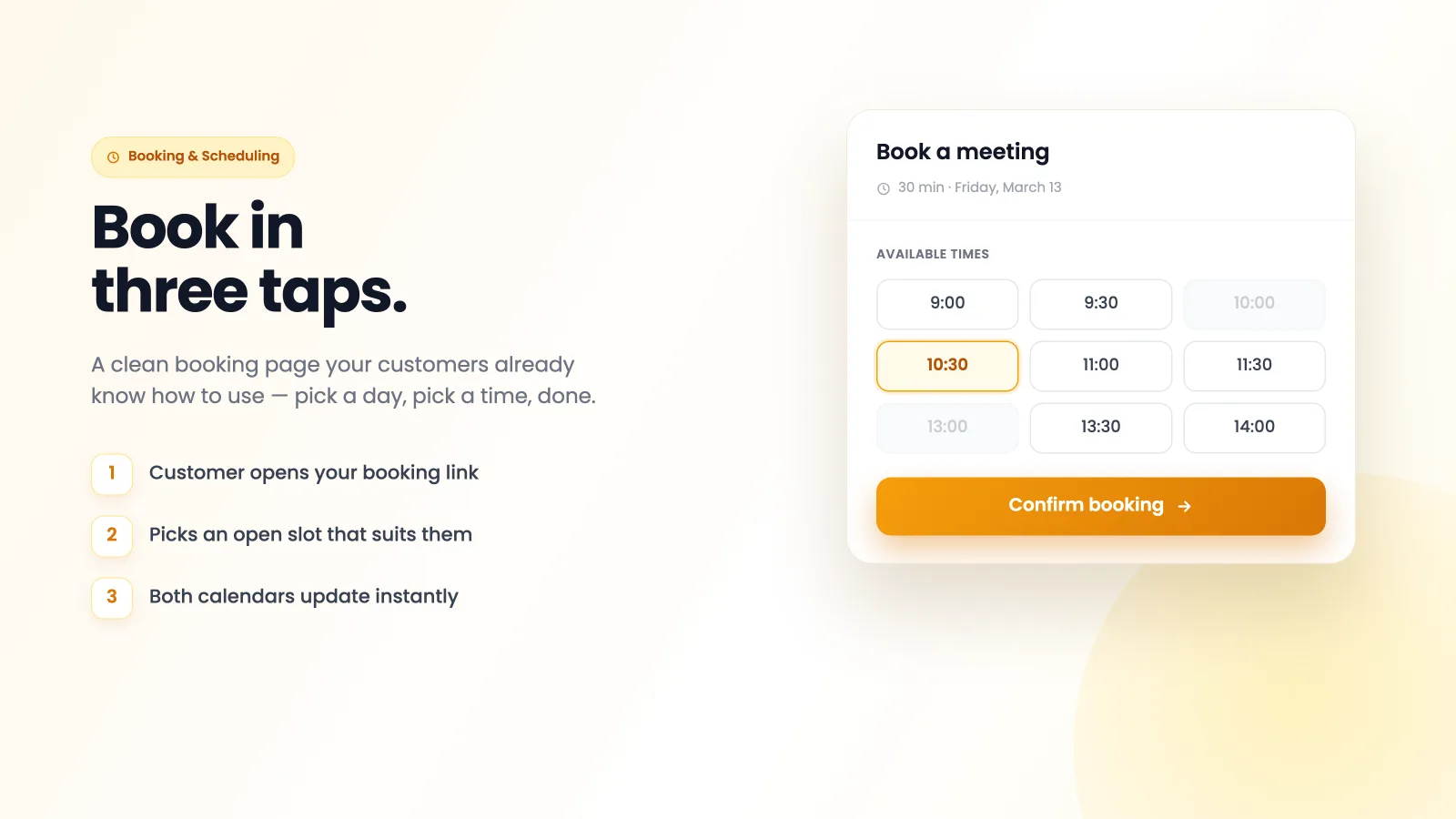
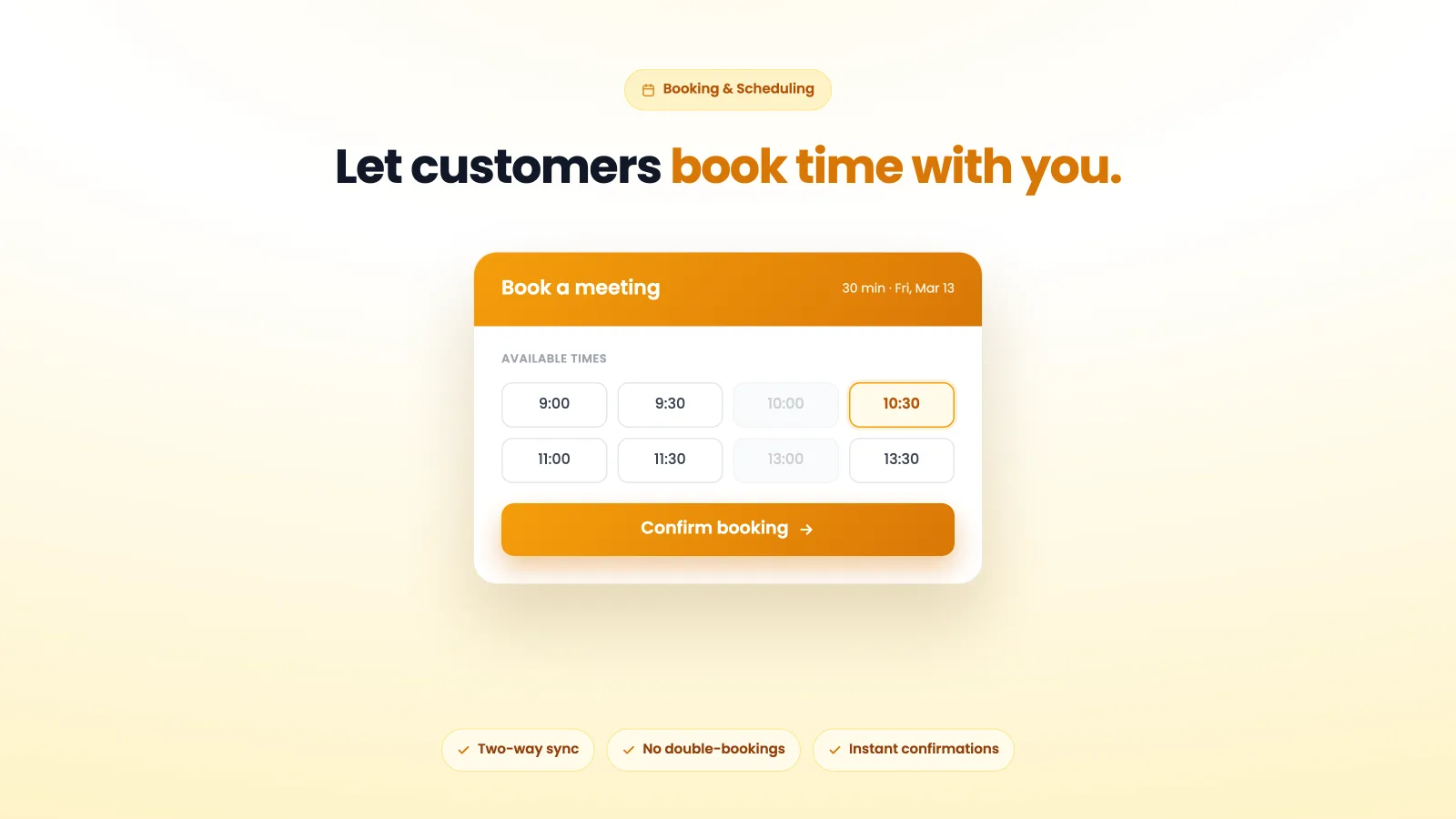
Booking gives your workspace a scheduling page your customers can use without an account. You create calendars (each hosted by a team member, in their own timezone) and define meeting types with their own duration, buffers, lead time and booking horizon. Customers pick a slot at your public link, answer any questions you set, and the meeting lands on both calendars.
Calendars and meeting types
One calendar per host, each with its own branding and IANA timezone. Meeting types carry duration, before/after buffers, minimum lead time, how far ahead people may book, and a per-day or per-week booking cap.
Two-way Google and Outlook sync
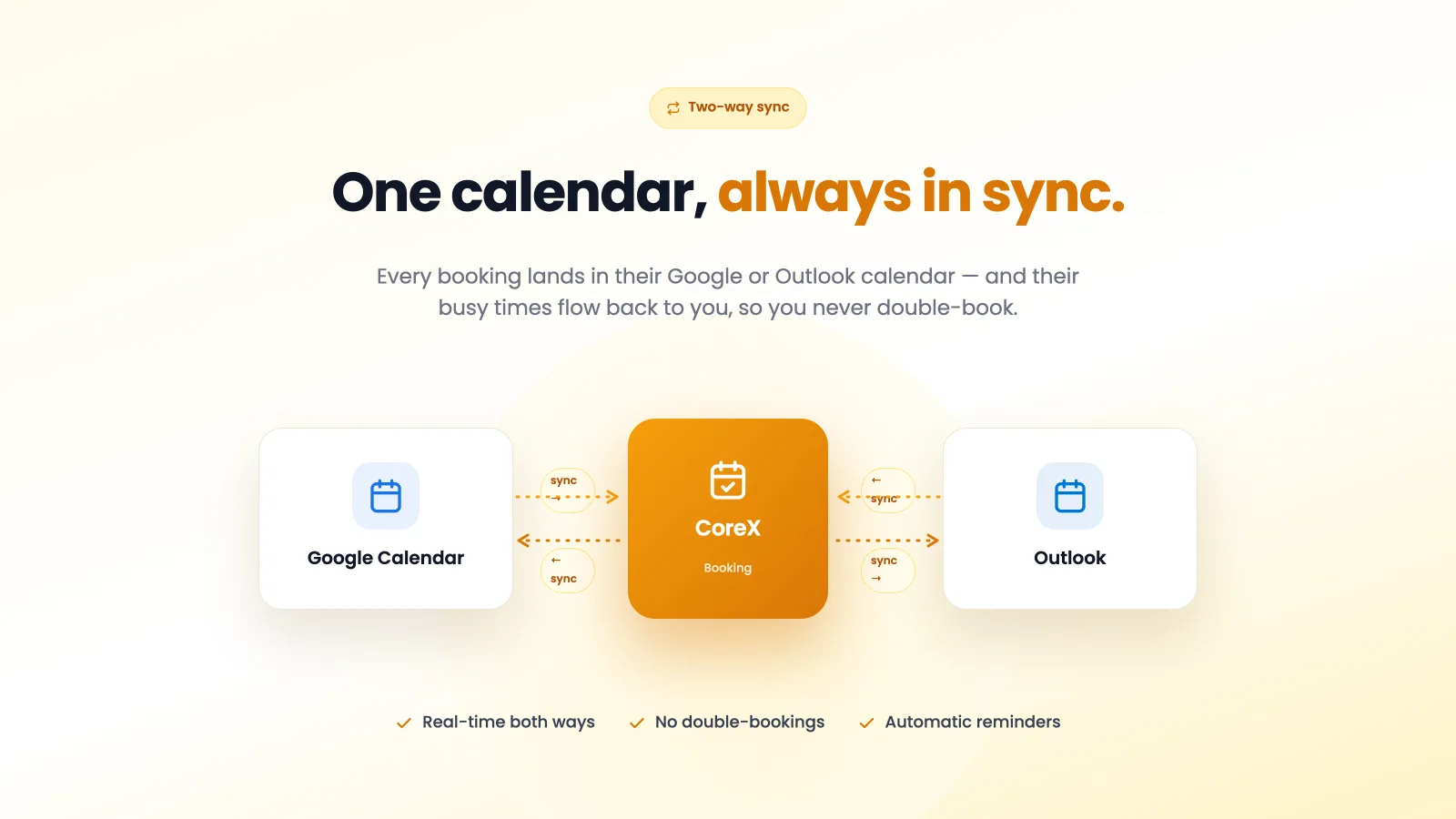
Connected calendars import busy times so a slot you are already booked for never shows as free, and every confirmed booking is pushed back out as a real calendar event.
A public page, or an embed
Your booking page is served at a public URL that needs no account, and the same page can be embedded in an iframe on your own site.
Confirmations, reminders and follow-ups
Customers get a confirmation email carrying a standard .ics attachment, then reminders before the meeting and a follow-up after, all sent for you.
Self-serve cancel and reschedule
Every email carries signed links, so a customer can move or cancel their own booking without emailing you and without an account.
Questions you choose
Add custom questions per meeting type and collect the answers with the booking, so you arrive at the call already knowing what it is about.
how it works
Live in three steps
- 01
Create a calendar
Pick the host, the timezone and your working hours, plus any one-off exceptions like holidays.
- 02
Define a meeting type
Set the length, the buffers, where it happens (video, phone or in person) and what you want to ask.
- 03
Share the link
Send the public URL or embed it. Slots update themselves as your connected calendar fills up.
what it is for
Put to work
at a glance
- Customer account
- Not required
- Calendar sync
- Google Calendar, Outlook, two-way
- Embeddable
- Yes, on any site
- Reminders
- Automatic, with .ics attachments
pricing
Free to install
Included in your workspace, no extra charge. Enable what you need.
- No extra charge
- Turn on or off anytime
- Works with your existing data
questions
Before you install
No. The booking page is public. They pick a slot, answer your questions and get a confirmation email.
Start with Booking & Scheduling.
Create your workspace and we will switch Booking & Scheduling on for you. Add the rest of the store whenever you need it.
No card required · every add-on free to install


